PM2 in Practice: Running, Updating and Auto-Starting Node.js Projects
A Next.js site or a Strapi CMS runs fine after yarn dev on a laptop. On a server, though, you can't just leave a command running in the terminal: the process dies with your SSH session, doesn't come back after a reboot and doesn't restart after a crash. PM2, a process manager for Node.js, takes care of all of that. This cheat sheet collects the commands we use on our own servers every day. Every command can be copied with the button in the corner of its block.
Installation
Install PM2 globally, once per server. If the server has several Node.js versions via nvm, install PM2 into the one you use by default.
npm install -g pm2
pm2 -v
Starting a project from its directory
The typical case: the project is already on the server, and you need to build it and run it in the background. Go to the folder, install dependencies, build, and hand the process over to PM2.
cd /var/www/my-site
yarn install --frozen-lockfile
yarn build
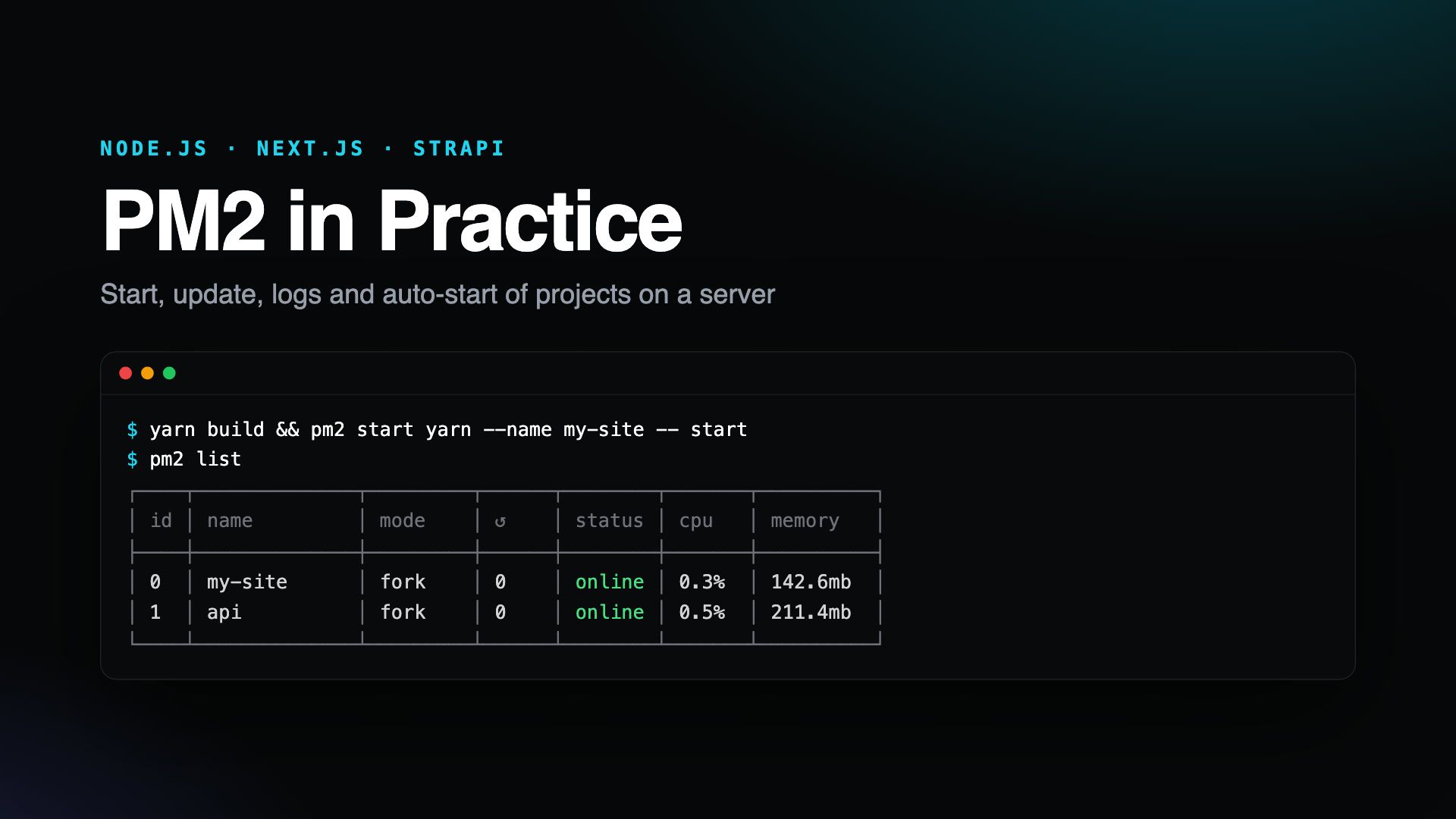
pm2 start yarn --name my-site -- start
Here is what the last line does:
pm2 start yarn: PM2 runsyarn;--name my-site: the process name you will use to manage the project;--: everything after the double dash goes toyarnitself, soyarn startis what runs.
Build and start can be combined into one line. && runs the next command only if the previous one succeeded, so a broken build never goes live:
yarn build && pm2 start yarn --name my-site -- start
The same with npm:
npm run build && pm2 start npm --name my-site -- run start
Port and environment variables
PM2 remembers variables set before the command and passes them to the process:
PORT=3001 NODE_ENV=production pm2 start yarn --name my-site -- start
For Next.js, the port can also be passed as an argument:
pm2 start yarn --name my-site -- start -p 3001
Starting Strapi
Strapi builds its admin panel with build and runs in production with start:
cd /var/www/my-api
yarn install --frozen-lockfile
NODE_ENV=production yarn build
NODE_ENV=production pm2 start yarn --name my-api -- start
A specific Node.js version per project
If a project needs a particular Node.js version (for example, Strapi on Node 20 and the site on Node 24), set the interpreter explicitly:
pm2 start yarn --name my-api --interpreter ~/.nvm/versions/node/v20.20.0/bin/node -- start
Managing processes
List all processes with their status, restart count (↺), memory and CPU:
pm2 list
Restart, stop or delete a process by name:
pm2 restart my-site
pm2 stop my-site
pm2 delete my-site
Restart with updated environment variables. Without the flag, PM2 keeps the old values even if you changed .env or the variables in the command:
pm2 restart my-site --update-env
Details about a process: path, command, interpreter, log files and uptime:
pm2 describe my-site
Real-time monitoring of all processes (press q to quit):
pm2 monit
Bulk operations:
pm2 restart all
pm2 stop all
Logs
The latest log lines plus live output (press Ctrl+C to quit):
pm2 logs my-site --lines 100
Errors only:
pm2 logs my-site --err --lines 200
Logs live in ~/.pm2/logs/. Without rotation they grow forever and eventually fill the disk. The pm2-logrotate module fixes that with a single install:
pm2 install pm2-logrotate
pm2 set pm2-logrotate:max_size 10M
pm2 set pm2-logrotate:retain 7
pm2 set pm2-logrotate:compress true
Clear all current logs:
pm2 flush
Auto-start after a server reboot
Skip this step and every site stays down after a reboot. First, generate the startup service:
pm2 startup
PM2 prints a command for you to run: copy it and run it. Then save the current process list. This is the list that comes back after a reboot:
pm2 save
Note: run pm2 save again every time you add or remove a process. To restore the saved list manually:
pm2 resurrect
Updating a project (deploy)
The standard update cycle: pull the code, install dependencies, build and restart.
cd /var/www/my-site
git pull
yarn install --frozen-lockfile
yarn build && pm2 restart my-site --update-env
If the build fails, && prevents the restart and the site keeps running the old version.
Near-zero-downtime updates for Next.js
The commands above have one drawback: yarn build overwrites the .next folder while the old process is still running, which can cause errors for visitors during the build. The fix is to build into a separate folder and swap it in instantly. Add this to next.config:
const nextConfig = {
  distDir: process.env.NEXT_DIST_DIR || '.next',
};
And update the project like this:
rm -rf .next-build
NEXT_DIST_DIR=.next-build yarn build
rm -rf .next-old && mv .next .next-old && mv .next-build .next
pm2 reload my-site --update-env
rm -rf .next-old
reload restarts processes one at a time. In cluster mode (below), this gives you updates with no downtime.
The ecosystem config file
With several projects, keeping launch options in your head gets awkward. Describe them in an ecosystem.config.js file at the project root:
module.exports = {
  apps: [
    {
      name: 'my-site',
      cwd: '/var/www/my-site',
      script: 'yarn',
      args: 'start',
      env: { NODE_ENV: 'production', PORT: 3000 },
      max_memory_restart: '700M',
      time: true,
    },
    {
      name: 'my-api',
      cwd: '/var/www/my-api',
      script: 'yarn',
      args: 'start',
      interpreter: '/root/.nvm/versions/node/v20.20.0/bin/node',
      env: { NODE_ENV: 'production' },
    },
  ],
};
max_memory_restartrestarts the process when it uses more memory than the limit, a safeguard against leaks;time: trueadds a timestamp to every log line.
Start everything in the file, or just one project:
pm2 start ecosystem.config.js
pm2 start ecosystem.config.js --only my-site
Apply changes from the file to processes that are already running:
pm2 reload ecosystem.config.js --update-env
Cluster mode
Node.js uses a single CPU core. PM2 can run several copies of the app and spread requests between them. For cluster mode, start Next.js itself rather than the yarn wrapper:
pm2 start node_modules/next/dist/bin/next --name my-site -i max -- start -p 3000
-i max runs one copy per core, -i 2 runs two. Keep in mind that each copy then has its own in-memory state (sessions, caches, rate limits).
When something goes wrong
A process is errored, or its restart count ↺ keeps climbing? Check the errors:
pm2 logs my-site --err --lines 100
The port is already taken by another process (EADDRINUSE)? Find out what holds it:
lsof -i :3000
Update PM2 itself without losing running processes:
npm install -g pm2@latest && pm2 update
Cheat sheet
| Task | Command |
|---|---|
| Start a project | pm2 start yarn --name my-site -- start |
| List processes | pm2 list |
| Restart | pm2 restart my-site --update-env |
| Graceful restart | pm2 reload my-site |
| Stop / delete | pm2 stop my-site / pm2 delete my-site |
| Logs | pm2 logs my-site --lines 100 |
| Monitoring | pm2 monit |
| Auto-start | pm2 startup → pm2 save |
PM2 covers nearly everything you need to run Node.js projects on a VPS: background processes, restarts after crashes, logs and auto-start. If you need help deploying or maintaining a Next.js and Strapi project, get in touch.